Nexus S and the Apple Wireless Keyboard

When I bought a Samsung Nexus S in December, I had problems using the Android keyboard because I have big fingers. They aren’t the sausages I remember when I shook George Duvivier‘s hand, but they’re big.

Inevitably, when I used the keyboard in the portrait mode, a key press would often result in a mistyped letter. I thought a Bluetooth keyboard would help with this problem and I miraculously received one for Christmas.

Nexus S

The Apple Wireless Keyboard follows Apple’s design aesthetic, which I happen to like (in spite of the Macintrash category I use on this blog).

I thought it would be a simple task to pair the two Bluetooth devices, but for several months, I was unable to find a suitable IME app that would work. You would just think it would work, but it didn’t. Last December, I tried Teksoft’s BlueInput demo and Elbrain’s BlueKeyboard JP. Neither of them worked at the time – I couldn’t get the keyboard to pair with the phone.

I don’t know if it was the Gingerbread update to 2.3.3 or an update to BlueKeyboard JP, but the last time I tried to connect them, the Nexus S and the Apple Wireless Keyboard started working together. I did the following:

On the phone, turn on Bluetooth – “Settings/Wireless Networks/Bluetooth

  • Power on the Apple Wireless Keyboard
  • If the keyboard isn’t listed under “Bluetooth devices” select “Scan for devices
  • Once the phone finds the keyboard, it will display “Paired but not connected” under the device name
  • Under “Settings/Language & keyboard “check “BlueKeyboardJP
  • Under “Settings/Language & Keyboard” select “BlueKeyboardJP settings
  • Check “Connecting Process
  • Selected keyboard” should have the Bluetooth keyboard’s name checked

Finally, open an app that uses text input. Touch and hold (long press) in the text box until “Edit text/Paste/Input method” pops up. Select “Input method” then select “BlueKeyboard JP.” In the Status bar, next to the Bluekeyboard JP notification icon, it will say, “Connecting….”

Apple Keyboard

Elbrain’s documentation for Bluekeyboard JP shows that the notification icon changes color for three different states – Disconnected, Connecting and Connected. It’s very subtle.

I’m currently using version 2.16 of Bluekeyboard JP, which has ads displayed at the bottom of the screen. Since I got Bluekeyboard JP working, I thought I’d use the paid version, which has a user dictionary, but the comments in the Android Market for BlueKeyboard Pro JP say that the paid version also has ads.

Update: I just installed Teksoft’s BlueInput demo 1.8 and it also works, pretty much the same as BlueKeyboard JP.

Android Macbook

Android running on Late 2006 Macbook

I downloaded LiveAndroid, a LiveCD for Android running on x86 platforms from Google Code, to try on my Macintrash.

Currently I am running OS X 10.5.7 and Windows 7 (build 7100) on my Late 2006 Macbook (Core 2 Duo, T7200). I’m also using rEFIt as my boot manager. The Android LiveCD showed up as Tux on the boot screen and I got to the Android desktop with the message, “Please connect charger, the battery is getting low: less than 15% remaining”. I was running on AC and the battery was fully charged. I dismissed that warning and went into the console (alt+F1) to try to configure networking.

The liveandroidv0.2.iso supports DHCP, so I tried to get the network running using the howtouse live-android instructions:

ifconfig eth0 yourip netmask yourip’s mask

e.g. ifconfig eth0 192.168.1.10 netmask 255.255.255.0

That resulted in ifconfig SIOSIFADDR: No such device

I also tried ifconfig eth1 but received the same message. I didn’t look at the startup log. What’s the use of anything

Windows 7 – Can’t Play DVD Video

I’ve been trying several builds of Windows 7 x64 on my Macbook that uses the Intel 945 Express Chipset. Recently, I did a clean install of Windows 7 build 7100. The display driver that is installed is a Prerelease WDDM 1.0 Driver (8.15.10.1620).

When I tried to play a DVD with Windows Media Player, I received the message “Cannot play DVD video.” Microsoft gives several possible reasons for this message:

  1. Your video card driver is out-of-date.
  2. Your computer is missing a compatible DVD decoder.
  3. Your computer hardware is not powerful enough to play DVDs.

Since build 7 is Windows 7 Ultimate, I assumed a decoder was built in to the OS. I was indignant that suggestion 3 was questioning the manhood of my Macintrash.

Then I remembered the OpenGL problem I had with one of my programs. After I installed the Intel Vista 64 bit drivers 7.14.10.1504 for the 945GM Chipset from downloadcenter.intel.com, WMP was able to play DVDs. I’m not sure why the Prerelease WDDM 1.0 Driver didn’t allow the decoding, but the released Vista driver works – just be sure to run the installer in the compatibility mode for Windows Vista.

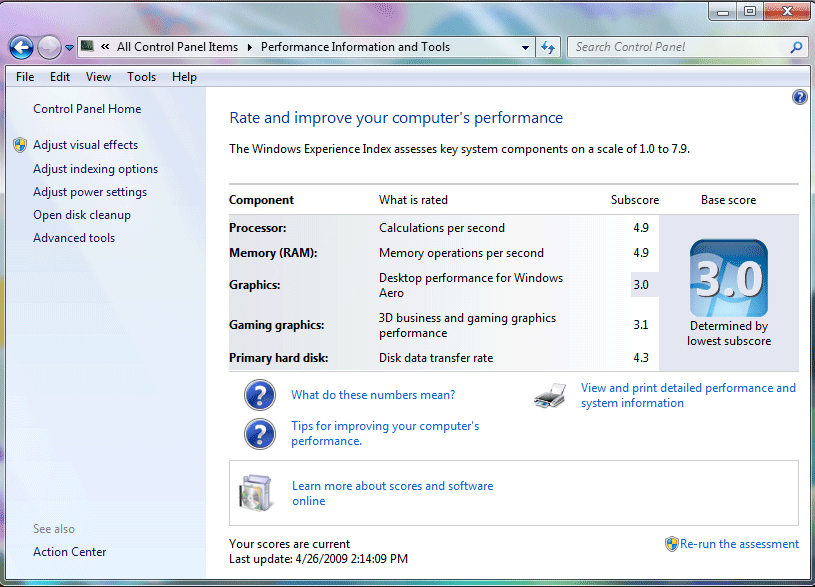
My Windows Experience Index also went up a tad compared to build 7068; compared to build 7000, the WEI from 2.0 to 3.0. So my computer is getting faster as it ages or Microsoft is improving Windows 7.

Windows 7 Build 7068 on a Macbook

I did an upgrade installation of Window 7 build 7068 (x64) over build 7000 that I installed in January on my Macbook (13-inch Late 2006 with an Intel Core2 Duo Mobile Processor T7200, 3GB RAM). Winver gives: 7068.0.amd64fre.winmain.090321-1322

Windows Experience Index
Windows Experience Index on a Macbook (13-inch Late 2006 with an Intel Core2 Duo Mobile Processor T7200, 3GB RAM).

I ran the Windows Experience Index assessment again, and the base score went up from 2.0 (build 7000 64-bit) to 2.8 (build 7068 64-bit).

With build 7000, my Macbook’s low score was because of the 2.0 subscore of the disk data transfer rate of the primary hard disk, a 120 GB Toshiba MK1234GSX. With build 7068, the subscore of disk data transfer rate of the same primary hard disk went up to 4.3.

With build 7000, the Processor and Memory (RAM) subscores were 5.0, while the Graphics and Gaming Graphics subscores were 3.1. With build 7068, the Processor and Memory (RAM) subscores were 4.8, while the Graphics and Gaming Graphics subscore was 3.1. The Desktop Performance for Windows Aero dropped from 3.1 (build 7000) to 2.8 (build 7068).

The main problem I’ve been experiencing with build 7000 is that Windows Explorer will get sluggish or hang after waking from sleep. Trying to switch directories or file copying, even locally, will trigger the problem. Ending the explorer.exe process and restarting the process doesn’t always solve the problem. A reboot does.